Get started
Install SwiftCNS
Create your workspace, connect the AI tool you already use, and check the connection. About five minutes.
Before you start
- An AI tool that supports MCP: Claude, ChatGPT, Cursor, Claude Code, Codex or another MCP client. MCP is included on every plan, Free too.
- Free covers one person and one project. To bring teammates in, you need Team. See Plans and usage.
- Nothing to install on a server. SwiftCNS runs in the browser; your AI tool talks to it over MCP.
Steps
Sign up and set up your workspace
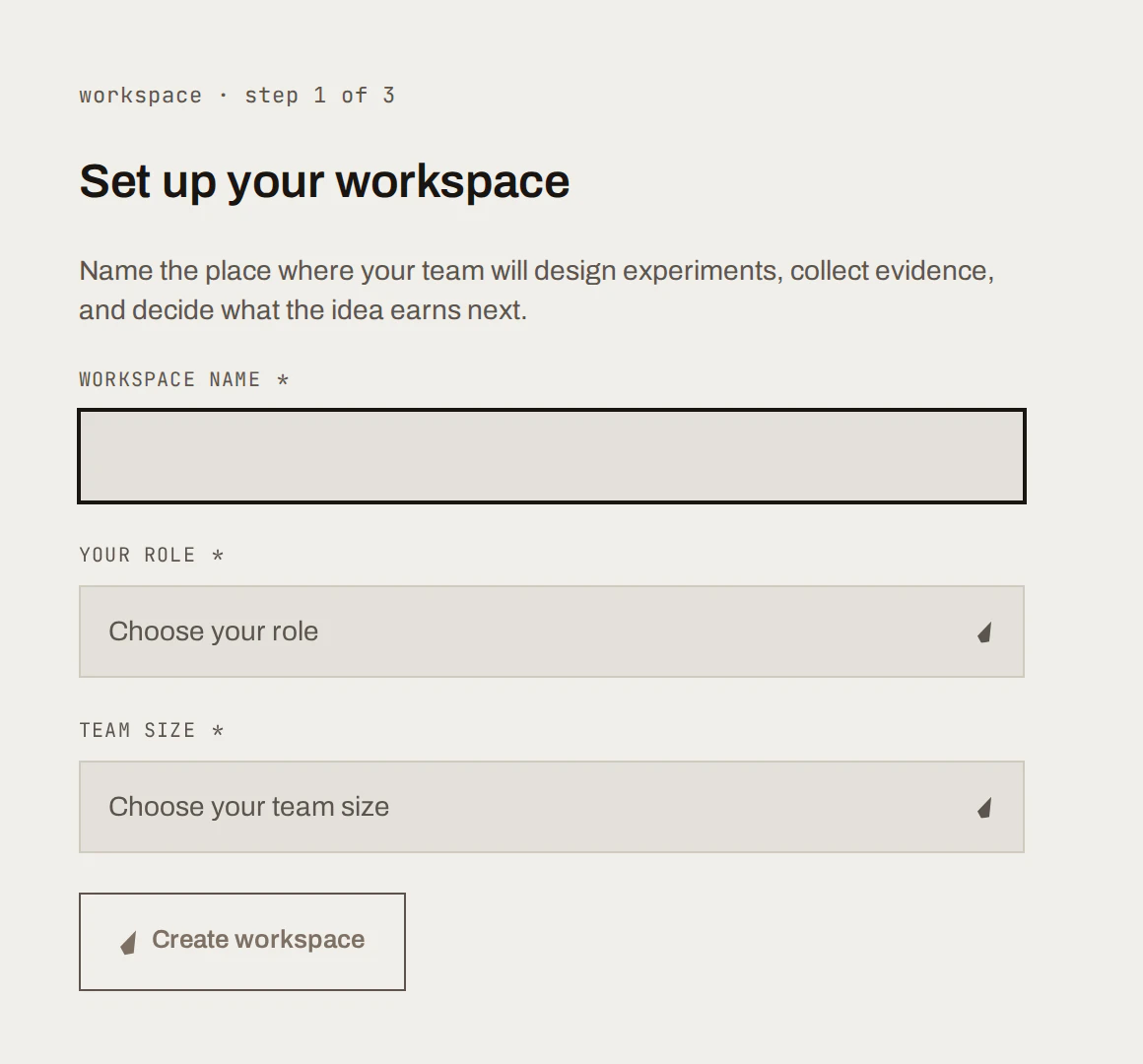
Open SwiftCNS and sign in. On Set up your workspace, enter a workspace name, your role and your team size, then choose Create workspace.
This is the one step your AI tool can't do for you: no MCP tool creates a workspace.
Pick the AI tool you already use
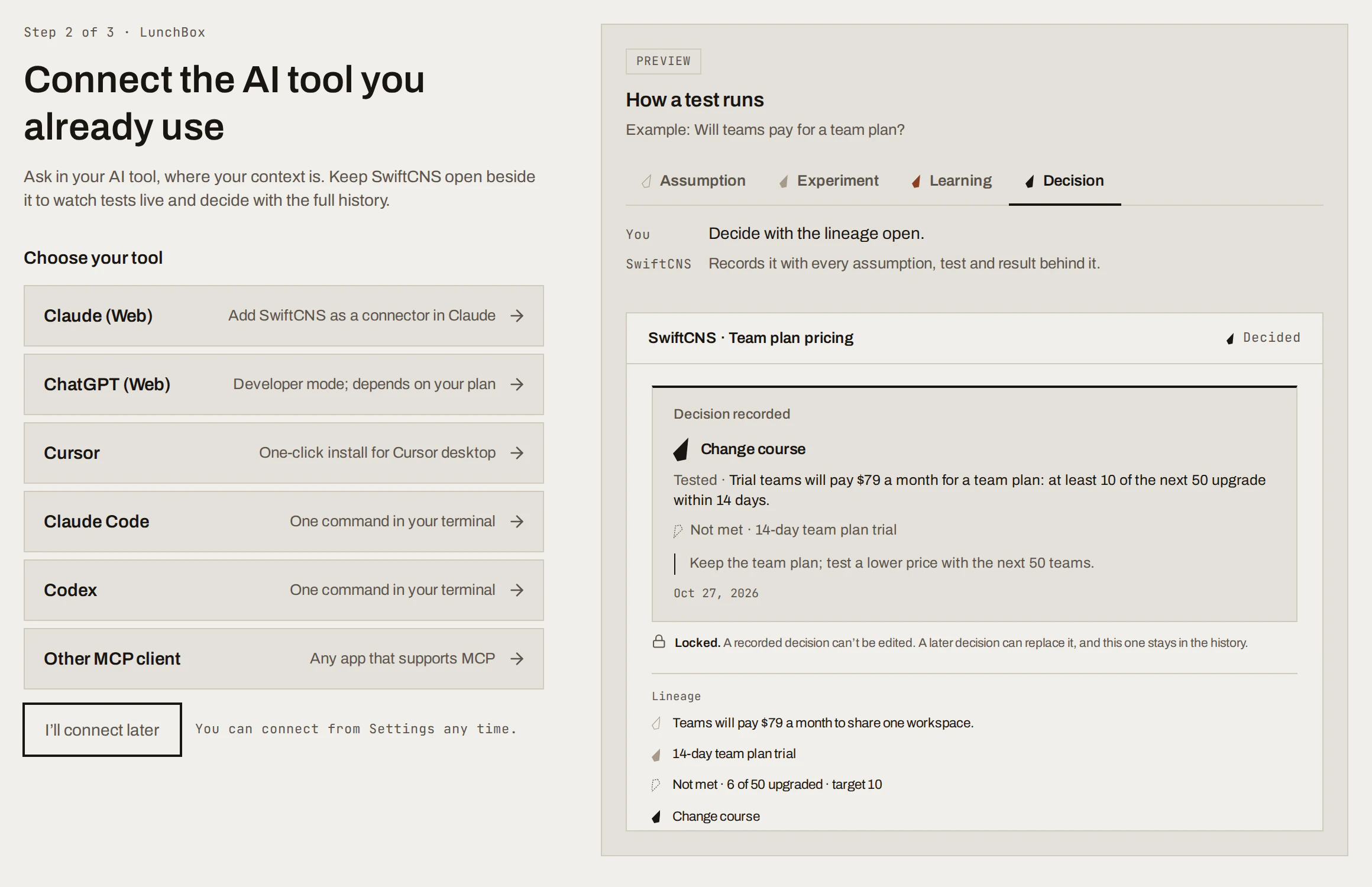
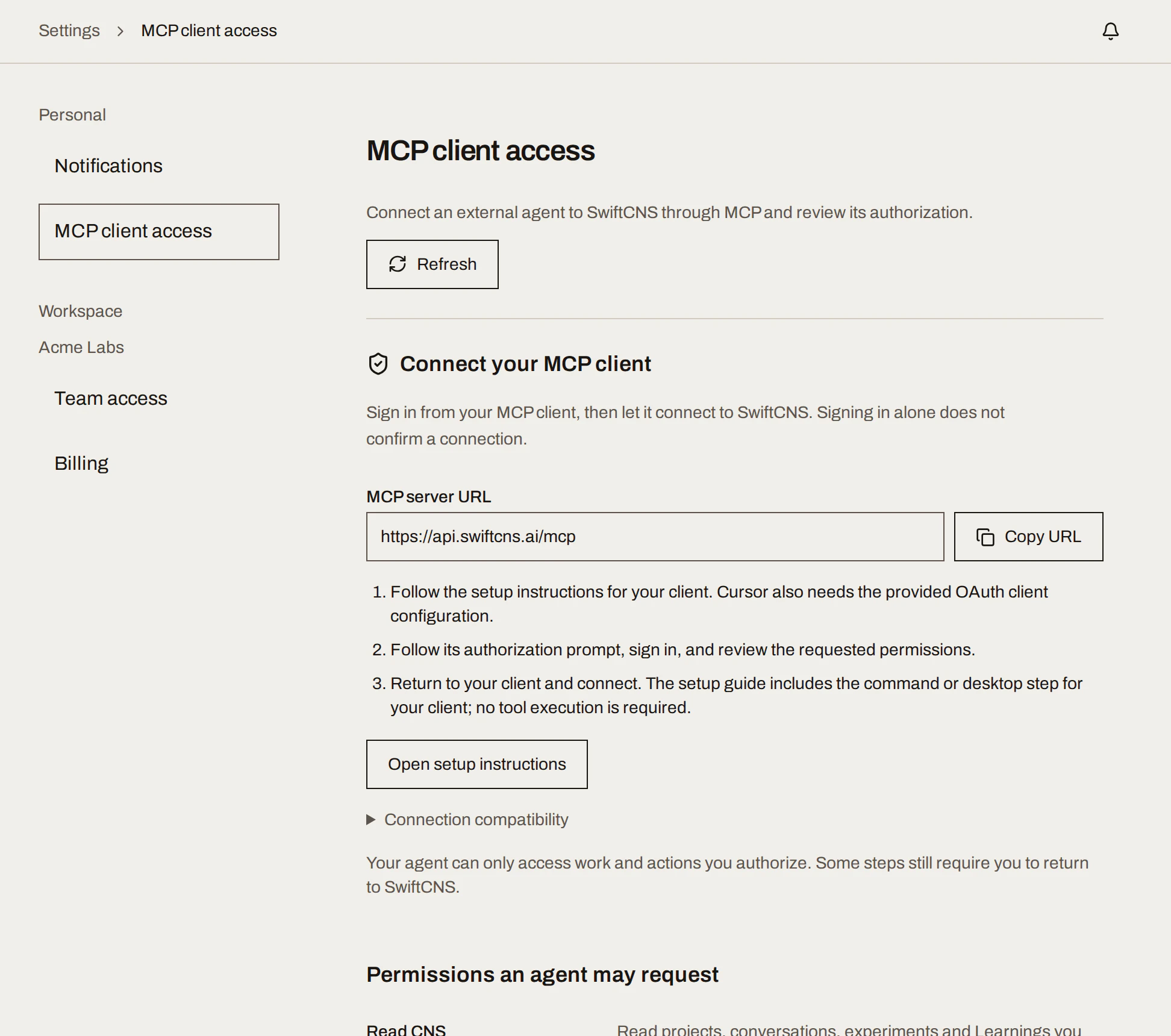
On Connect the AI tool you already use, choose your tool. SwiftCNS shows setup steps for that tool only. You can also choose I'll connect later and come back from Settings → MCP client access.
Add SwiftCNS to your tool
Not sure which? If you use Claude or ChatGPT in the browser, pick that.
In Claude, add a custom connector and paste the server URL:
https://api.swiftcns.ai/mcp.In ChatGPT, turn on developer mode and create an MCP app with the server URL:
https://api.swiftcns.ai/mcp. Availability depends on your ChatGPT plan and workspace settings.Choose Add to Cursor on the setup page. It opens Cursor with the server and its sign-in settings filled in. Then, in Cursor's MCP settings, enable swiftcns and sign in.
Prefer to paste? The setup page has Copy config for
~/.cursor/mcp.json. Use that copy rather than writing your own: it carries the sign-in settings Cursor needs.claude mcp add --transport http --scope user swiftcns 'https://api.swiftcns.ai/mcp' claude mcp login swiftcnscodex mcp add swiftcns --url 'https://api.swiftcns.ai/mcp'Adding the server usually starts sign-in. If it doesn't, run
codex mcp login swiftcns. Then startcodexand enter/mcpto check.Add a remote MCP server with the URL
https://api.swiftcns.ai/mcp. Choose HTTP if your client asks for a transport.Sign in and approve permissions
Your tool opens a SwiftCNS sign-in page. Use the same account as your workspace and review the permissions. Approve Make decisions too, or your AI tool can read but can't select, assign or record anything for you.
Check the connection
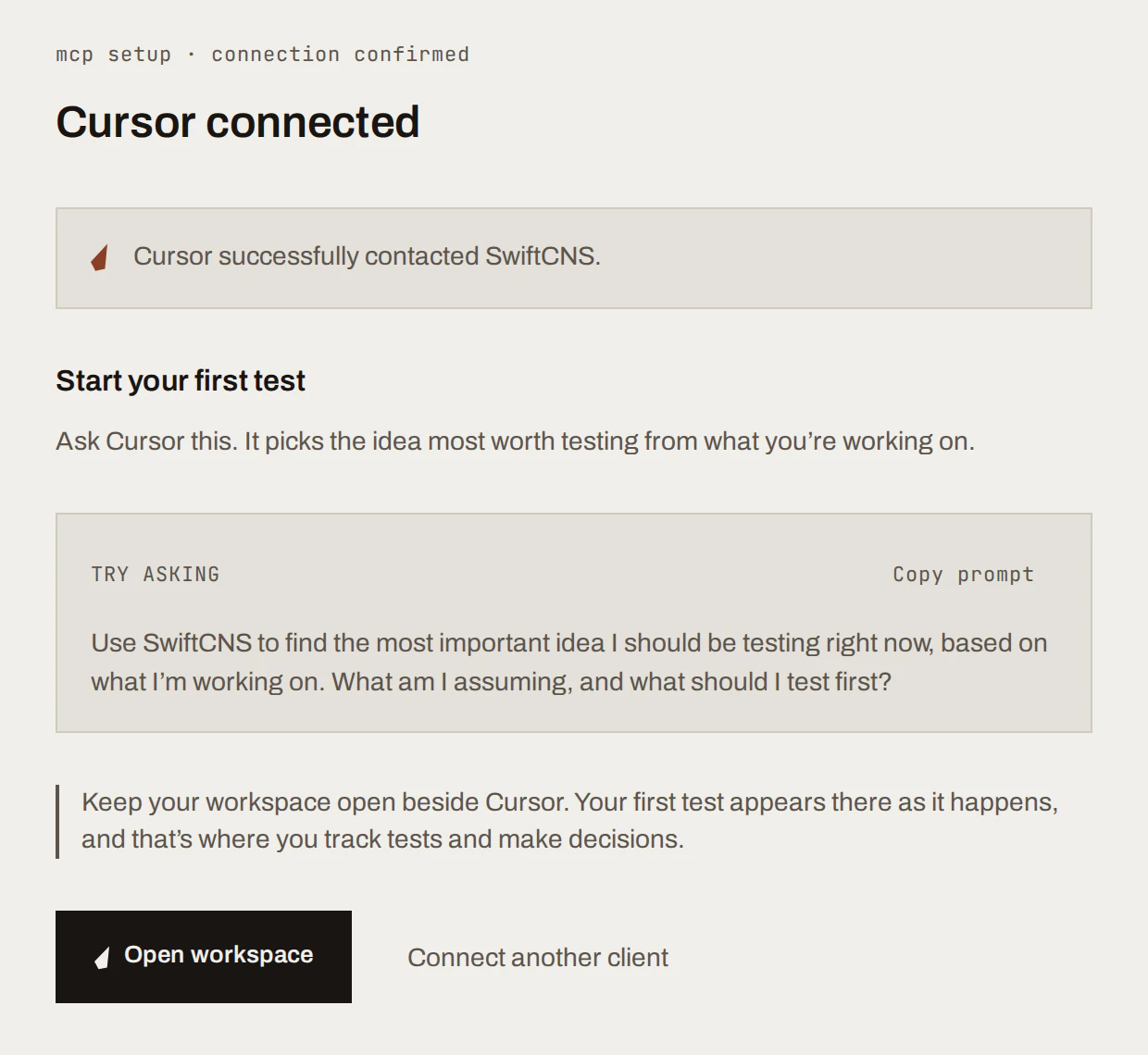
Go back to the setup page and choose Check connection. It updates when your tool first contacts SwiftCNS. Then copy the starter prompt into your tool:
Ask in your AI tool Use SwiftCNS to find the most important idea I should be testing right now, based on what I'm working on. What am I assuming, and what should I test first?
What you get
- A workspace, with you as its owner.
- Your AI tool connected, limited to the permissions you approved. It can only reach work you can reach. See Security and data.
Keep SwiftCNS open beside your AI tool. Records your tool creates appear in the app as they happen. See how to work with both.
Done when
- The setup page says your tool is connected.
- Asking your tool "list my SwiftCNS workspaces" names your workspace.
Troubleshooting
- "Invalid credentials" or 401. Sign in again from your tool (
claude mcp login swiftcns,codex mcp login swiftcns, or reconnect the connector). A removed authorization needs a fresh sign-in. - Your tool can't select or approve anything. You didn't grant Make decisions. Remove the authorization under Settings → MCP client access and connect again.
- No workspaces listed. You signed in to your tool with a different account than the one that owns the workspace.
- The server URL differs from this page. Use the one on Settings → MCP client access; it is always right for your account.
For agents: MCP tools and gotchas
- Transport: streamable HTTP; auth: OAuth 2 with scopes
cns:read,cns:write,cns:decide,cns:sources:read. - Start with
list_workspaces, thenlist_projects. A user with no workspace must create one in the browser first.
Next
Your first test: one idea, from question to recorded Decision.