Use the app
Workspace and projects
Find your way around SwiftCNS, from the workspace dashboard to a project's home, and see what's waiting on you.
Before you start
- A workspace (install). Workspace members can see and edit every project in it; people you share with as viewers can only read.
Steps
Start from the dashboard
The dashboard is your workspace home. Describe something to test in the box at the top, or open a project.
- Waiting on you lists steps you can act on now: experiments to assign or approve, trackers to complete.
- Recent projects lists projects, with search. Choose New project to add one.
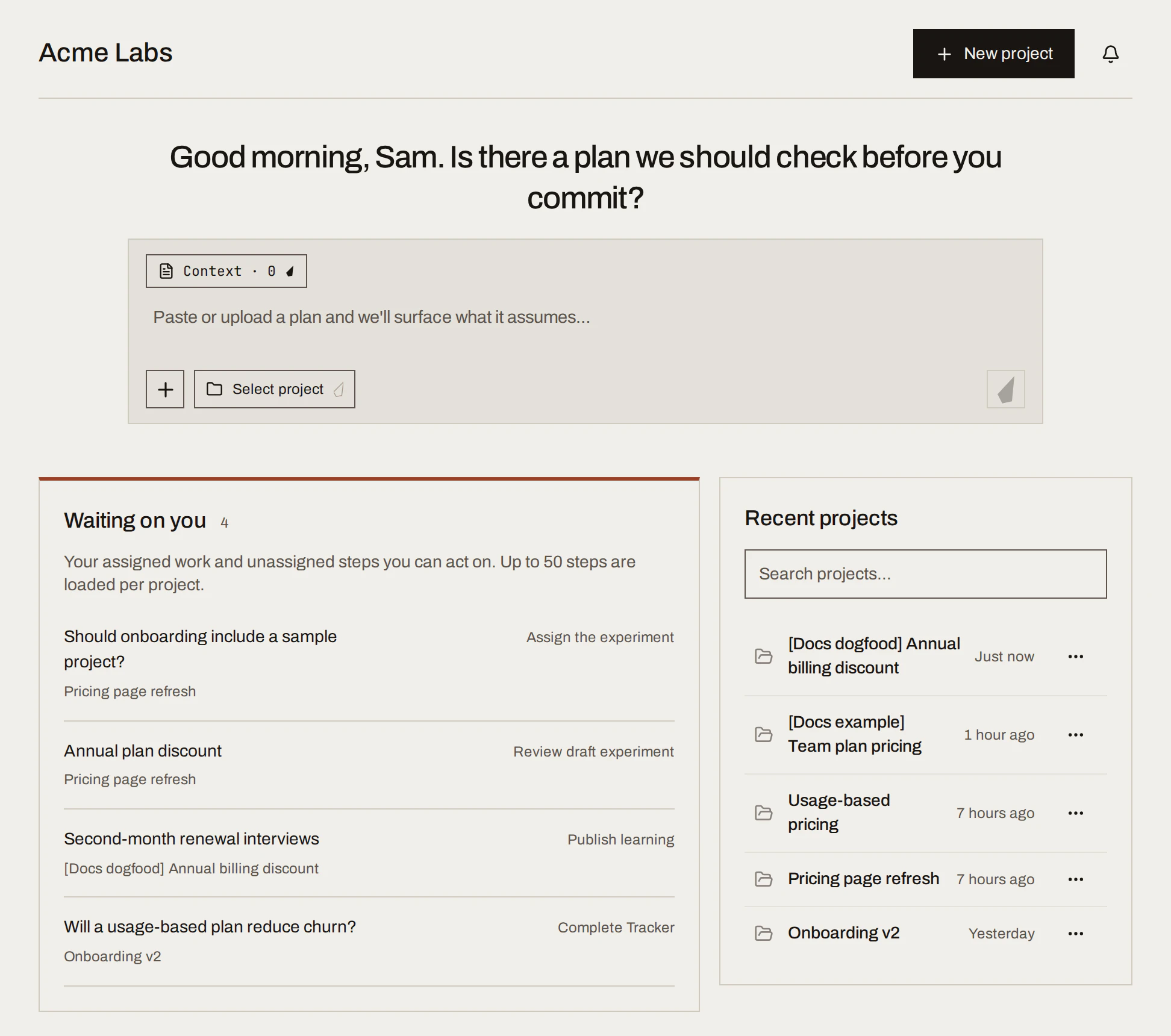
Sample data Open a project
A project holds one area of work, such as pricing or onboarding. Its Project home shows:
- Work: every conversation in the project, grouped by where it stands (exploring, designing, collecting evidence, learning, decided). Filter by your move, overdue or search.
- At a glance: where work sits, what needs attention (overdue, unassigned, quiet for 7+ days), how long a learning cycle takes, and what's on the record.
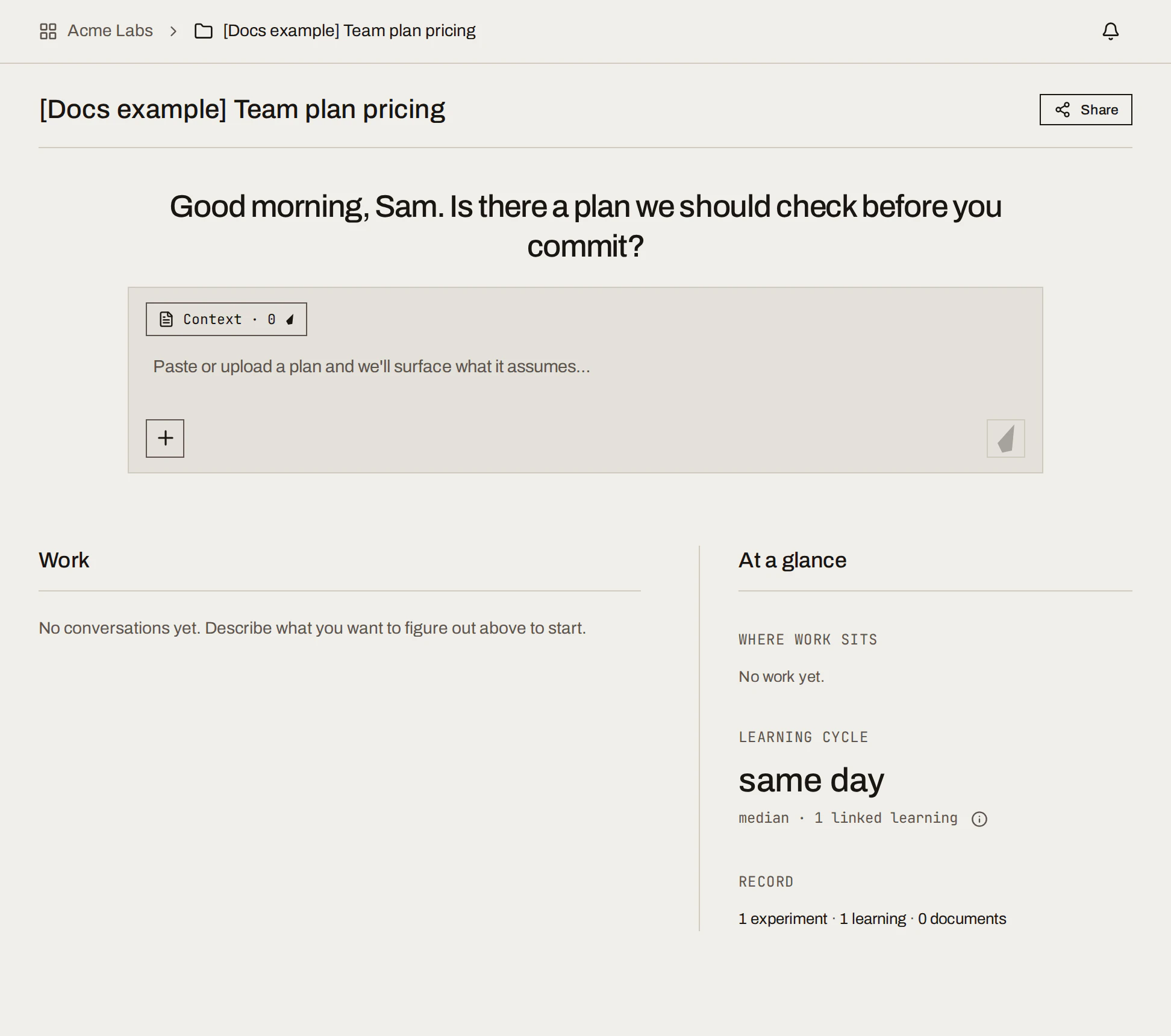
Sample data Use the sidebar
Inside a project, the sidebar has Project home, Experiments, Learnings, Decisions and Documents. Workspace recents reopens your latest conversations. New conversation starts a fresh question; Plugins connects outside sources; Docs opens this site.
What you get
A place for each question, and one view of everything in flight. In the running example, the project "[Docs example] Team plan pricing" holds one conversation, now under Decided.
Done when
- You can find a project's experiments, Learnings and Decisions from the sidebar.
- You check Waiting on you to see what needs you next.
Common mistakes
- One giant project. Split by area of work so the record stays readable.
- Many questions in one conversation. Start a New conversation per question.
For agents: MCP tools and gotchas
list_workspaces,list_projects,get_project; create withgenerate_resource_id(PROJECT) thencreate_project.list_conversationsfinds existing work;get_conversation_progressreturns its stage andbrowserUrlto open it in the app.
Next
The workbench: where each conversation happens.