Use the app
Team and roles
Add people to your workspace, or share a project or conversation, and know who can do what.
Before you start
- The person you're adding needs a SwiftCNS account. Adding them sends no email, so tell them.
- How many members you can add depends on your plan (Plans and usage). Viewers are unlimited.
Steps
Add someone to the whole workspace
Go to Settings → Team access. Under Add someone to your workspace, enter their email and choose Add. They join as a member who can open and edit every project in the workspace.
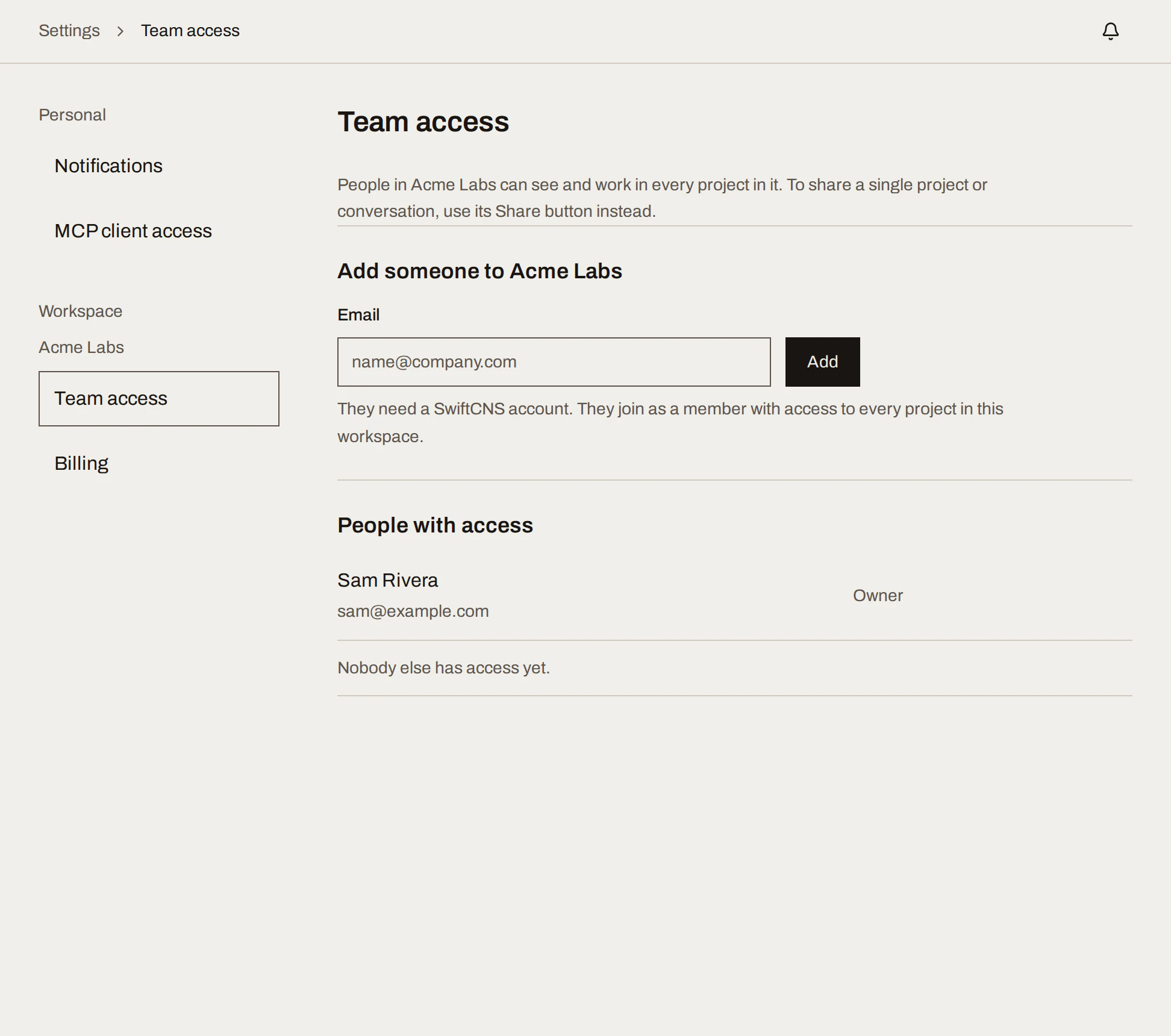
Sample data Or share one project or conversation
Open the project and choose Share, or choose Share from a conversation's menu. Enter the email they sign in with, pick a role, then Grant access:
- Editor: can start conversations, act on cards, log evidence, publish Learnings and record decisions.
- Viewer: can open everything, including trackers, but can't change anything.
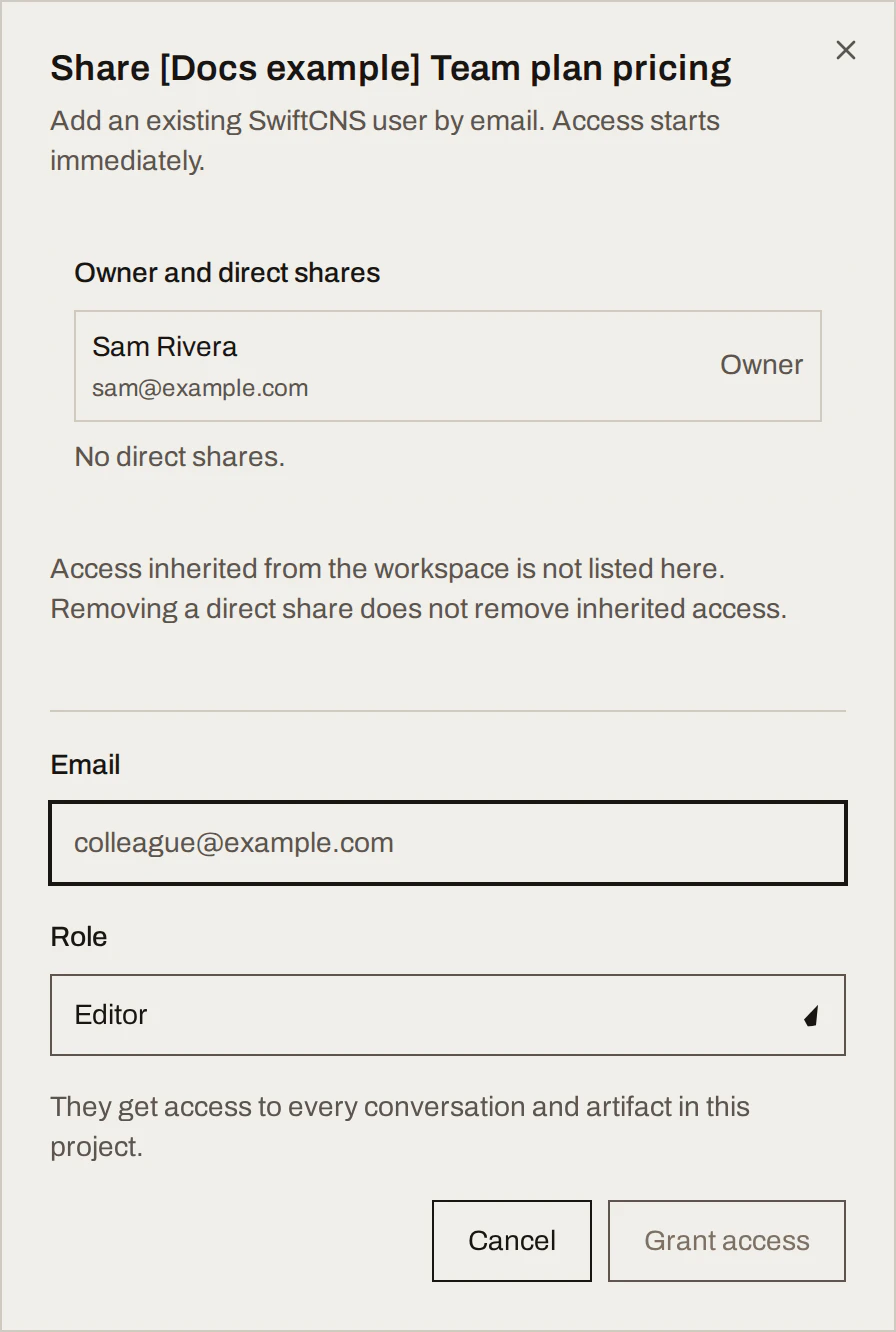
Sample data Assign work
Assign each experiment to an owner (an editor on the project) with a due date. The owner sees it under Waiting on you and assigned to me on the Experiments board.
What you get
| Who | Can |
|---|---|
| Workspace owner | Everything, plus team access and billing |
| Workspace member | View and edit every project in the workspace |
| Project editor | Work in that project |
| Project viewer | Read that project, including trackers and the record |
| Conversation editor or viewer | The same, for one conversation |
Done when
- Your teammates can open the project.
- Each running experiment has an owner who is an editor.
Common mistakes
- Sharing with the wrong account. Add the email they sign in with.
- Making a stakeholder a member or editor to let them read. Members can edit everything. Share as Viewer; it's enough to follow the record.
For agents: MCP tools and gotchas
list_eligible_experiment_assigneesreturns the people an experiment can be assigned to.- No MCP tool manages members or shares; direct the user to Settings → Team access or Share.